
AI Text to Speech: 7 Powerful Tricks for Professional Voiceovers
AI Text to Speech can completely change the quality of your videos. You can have an incredible script, strong editing, beautiful visuals, and a great idea — but if the voice sounds robotic, annoying, or uncomfortable to listen to, viewers can leave within seconds. Pasted markdown
The good news is that you don’t necessarily need an expensive microphone, a recording studio, or even your own voice. With AI Text to Speech, you can turn a written script into a clean, natural-sounding voiceover directly from your browser.
But simply pasting a script into an AI voice generator isn’t enough. The difference between a robotic voice and a professional voiceover often comes down to the voice you choose, the instructions you give it, and the way your script is written.
In this guide, you’ll learn the complete workflow and 7 powerful tricks to make AI Text to Speech sound more natural and professional.
Table of Contents
- What Is AI Text to Speech?
- Why Voice Quality Matters
- Create Your Voice Style
- Choose the Right AI Voice
- Prepare Your Script for Speech
- Make AI Voices Sound Natural
- Handle Long Voiceovers
- Build a Repeatable Workflow
- Frequently Asked Questions
What Is AI Text to Speech?
AI Text to Speech is technology that converts written text into spoken audio. The basic process is simple:
Script → AI Voice Generator → Voiceover
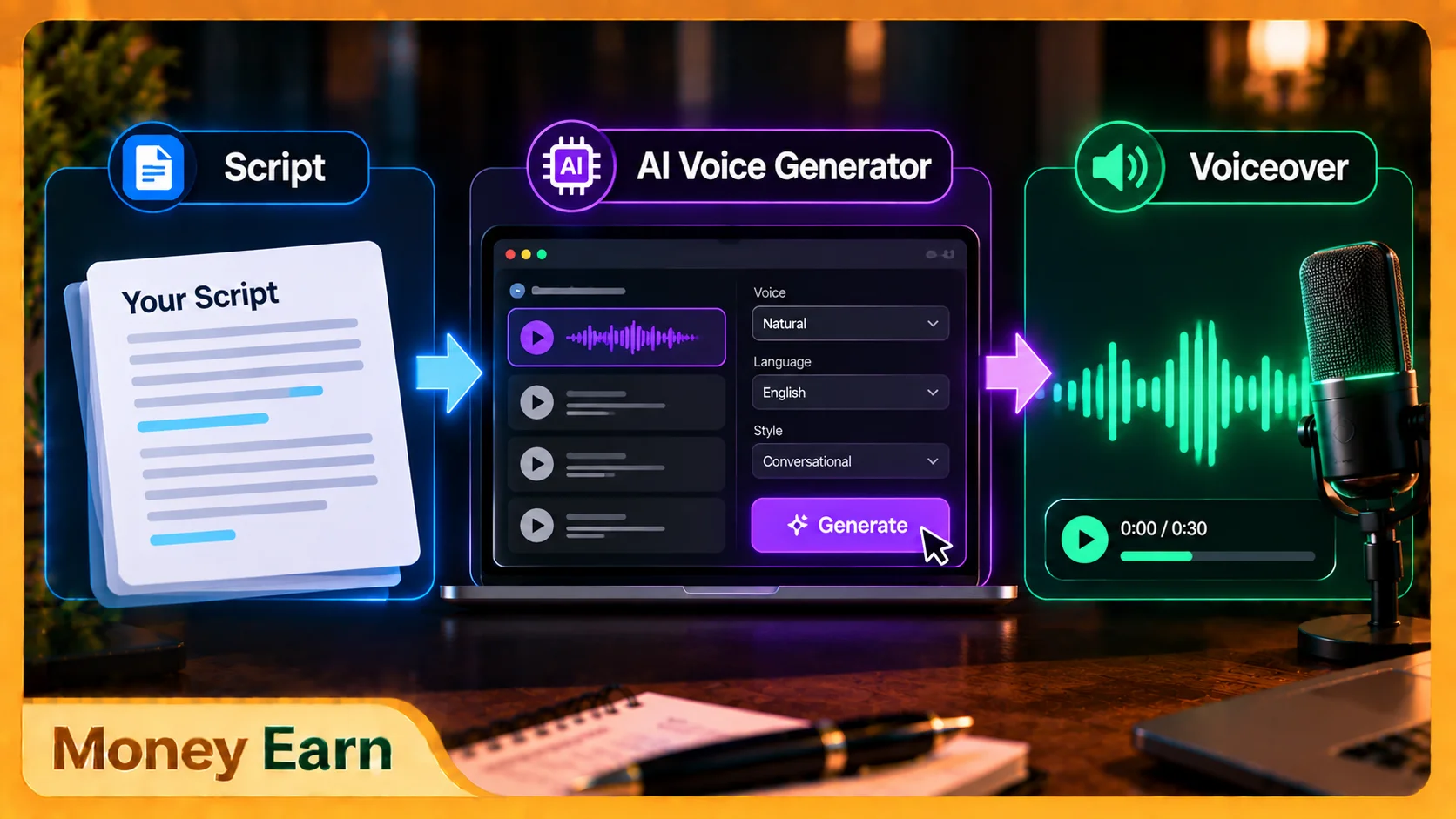
Modern AI voice tools can do much more than simply read words aloud. Depending on the platform and model, you may be able to control the voice, tone, pacing, speaking style, emotion, delivery, and energy.
That’s important because your goal shouldn’t be to make AI simply read your script.
You want the voice to fit your content.
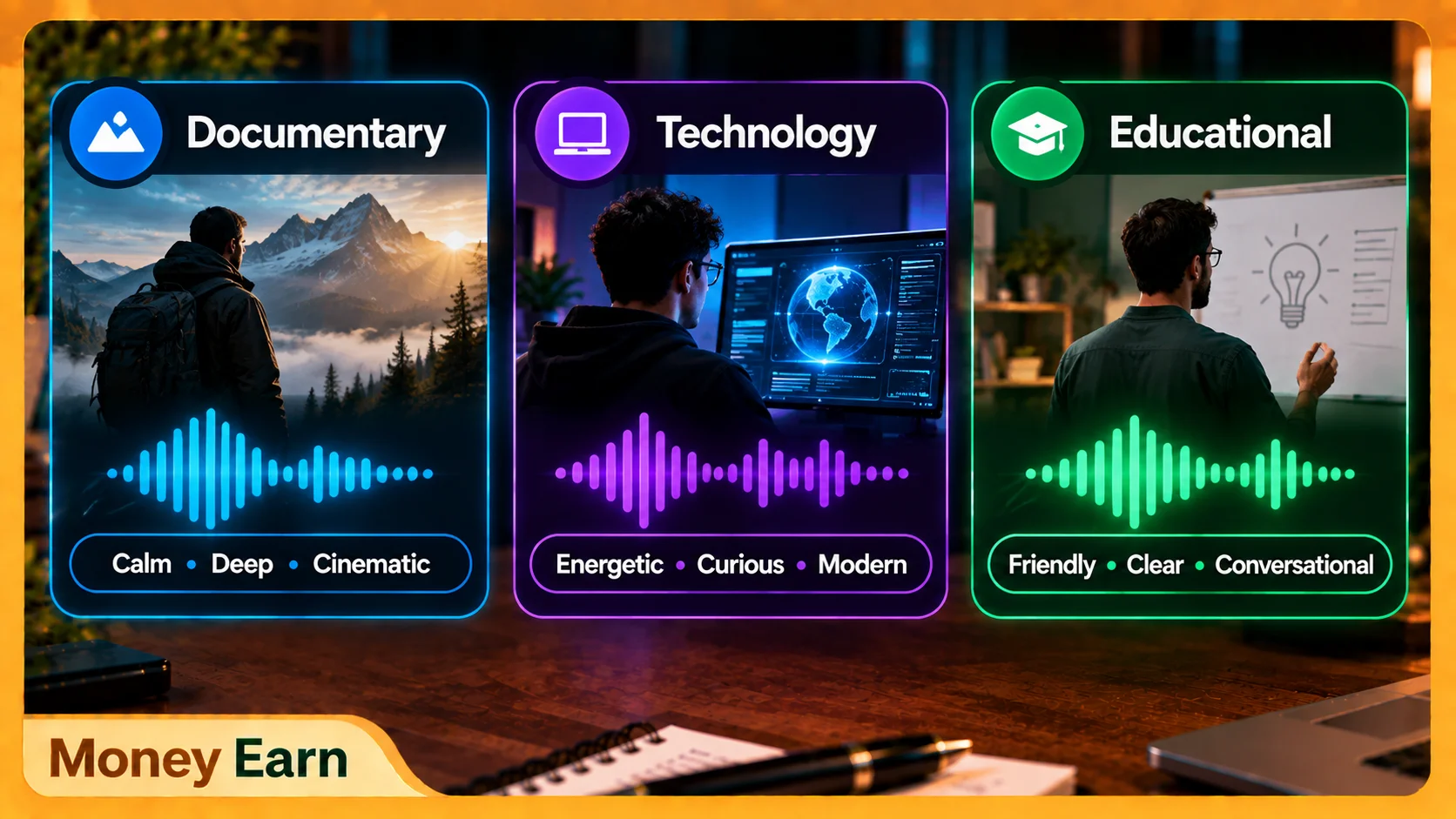
A documentary might need a calm, deep, cinematic delivery, while a technology video could work better with something energetic, curious, and modern. Educational content might need a friendly, clear, conversational voice.
The technology may be the same, but the delivery shouldn’t be.
Why Voice Quality Can Make or Break Your Video
Think about videos you genuinely enjoy watching. The narrator usually doesn’t sound like they’re reading an instruction manual. There’s rhythm, emotion, natural pauses, changes in emphasis, and enough variation to keep the narration interesting.
Now imagine the opposite: a robotic voice reading every sentence at exactly the same speed with almost no emotion.
Even great information becomes difficult to listen to.
This becomes especially important with faceless content because the narrator may be one of the strongest human-like elements in the entire video. If you’re trying to Make Money on YouTube with faceless videos, your voiceover isn’t simply background audio.
It’s part of your channel’s identity.
That’s why spending a few extra minutes improving your AI voice can make a noticeable difference to the final video.
If you’re planning to build a channel without appearing on camera, check out our complete guide on how to make money on YouTube without showing your face.
1. Create Your AI Voice Style Before Generating
Here’s something many beginners skip: don’t immediately paste your script into the voice generator.
First decide:
How should this voice sound?
You can use ChatGPT or another capable AI assistant to create voice-style instructions based on your niche.
For example:
Create professional voice style instructions for a YouTube narrator in the [YOUR NICHE] niche. The voice should sound natural, engaging, confident, comfortable to listen to, and suitable for maintaining viewer attention. Use [YOUR LANGUAGE/ACCENT].
Then customize the instructions for your content.
For documentaries, you might choose:
Calm + Deep + Cinematic + Controlled
For technology:
Energetic + Curious + Modern + Fast-Paced
For educational content:
Friendly + Clear + Confident + Conversational
Once you find a combination that works, save it. Using a consistent voice and delivery style across multiple videos can eventually become part of your channel’s identity.
2. Choose the Right AI Text to Speech Voice
For this workflow, you can use an AI voice platform such as Google AI Studio and open its available Text-to-Speech functionality.
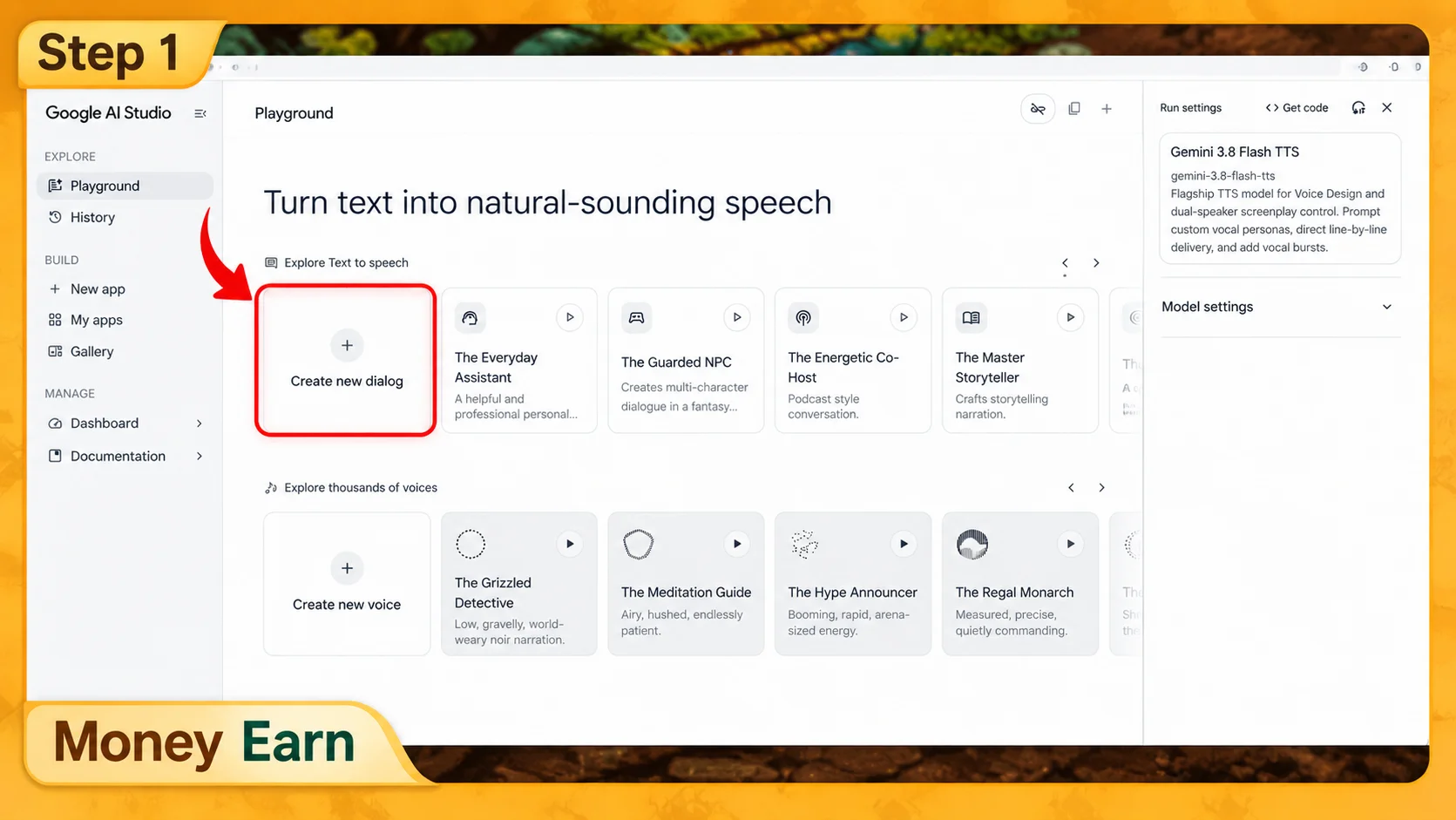
If you’re creating normal narration with one narrator, select the appropriate single-speaker option rather than unnecessarily complicating the setup.
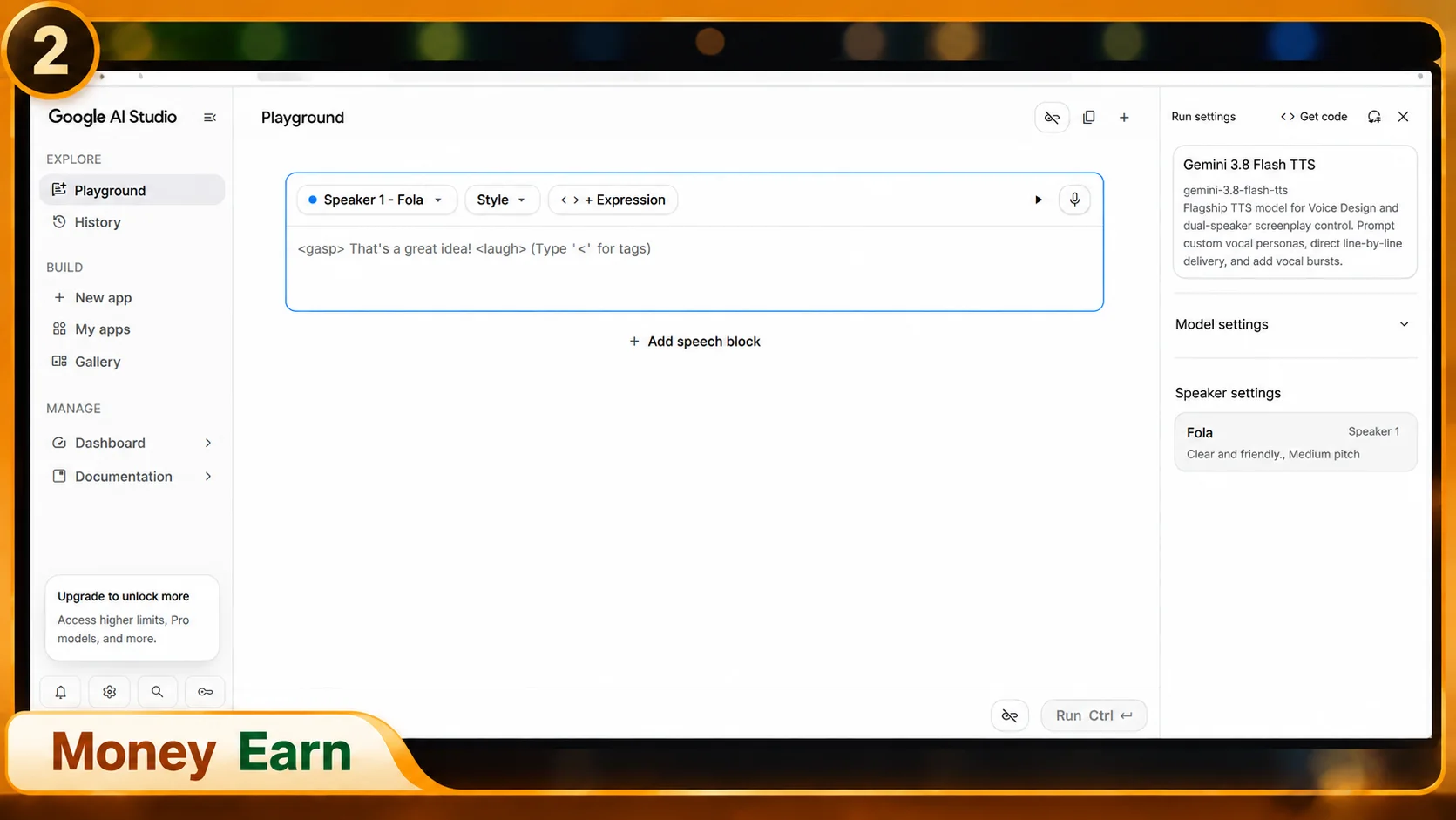
Then comes one of the most important decisions:
Choosing the voice.
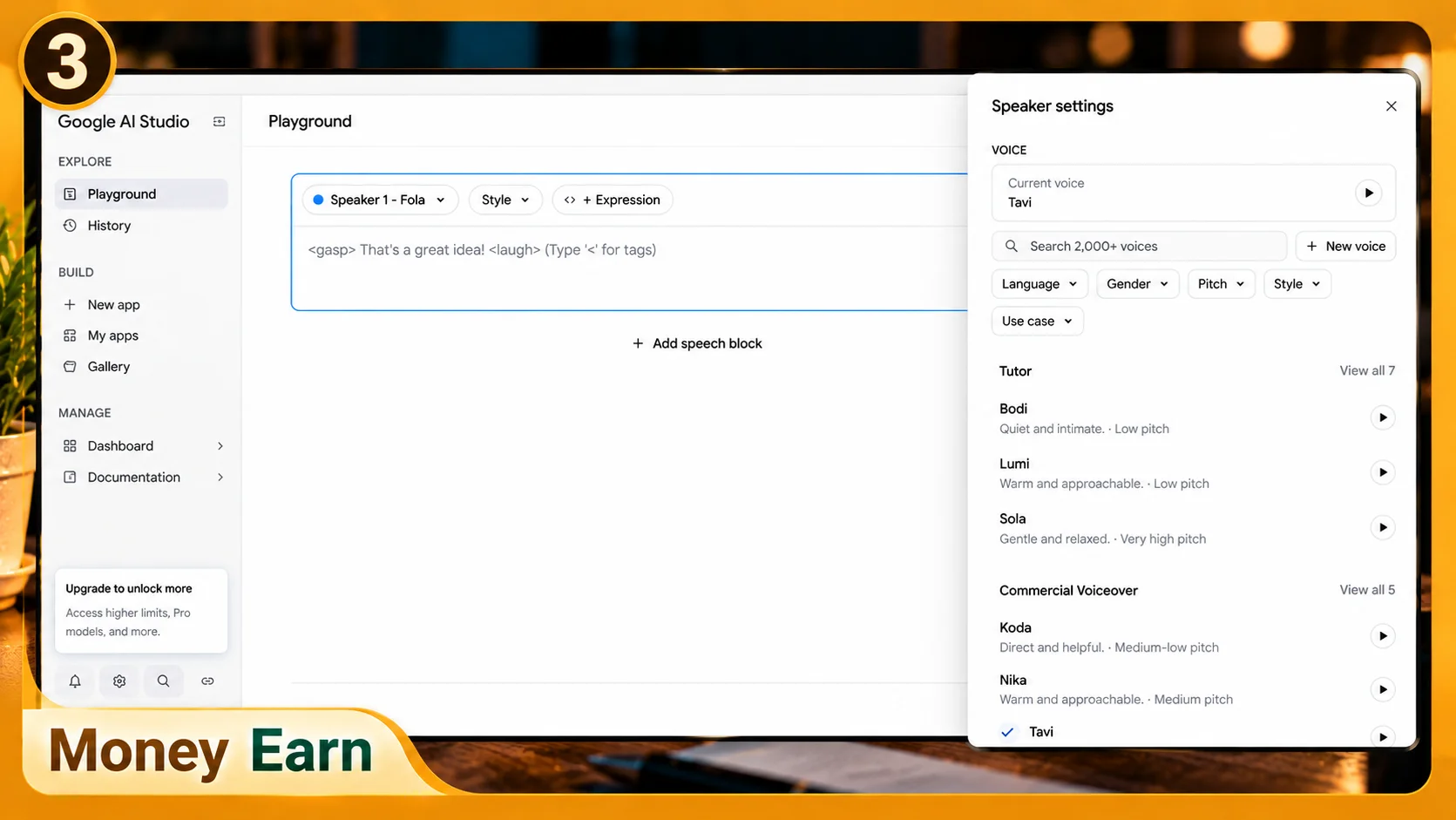
Don’t select the first voice that sounds acceptable. Test several options and listen to how each one handles your actual content.
Ask yourself whether the voice fits your niche, whether you’d be comfortable listening to it for several minutes, and whether its energy matches the video.
A voice might sound professional but be too slow. Another might sound exciting for 20 seconds but become exhausting during a ten-minute video.
There’s no universally perfect AI voice.
There’s a voice that fits your content.
A deep cinematic narrator could work beautifully for mystery or documentary content while sounding completely wrong for a fast software tutorial.
Test, compare, and choose based on the actual video you’re creating.
3. Give the AI Clear Style Instructions
Once you’ve selected a voice, use the available Style Instructions or equivalent controls to tell the AI how the narration should be delivered.
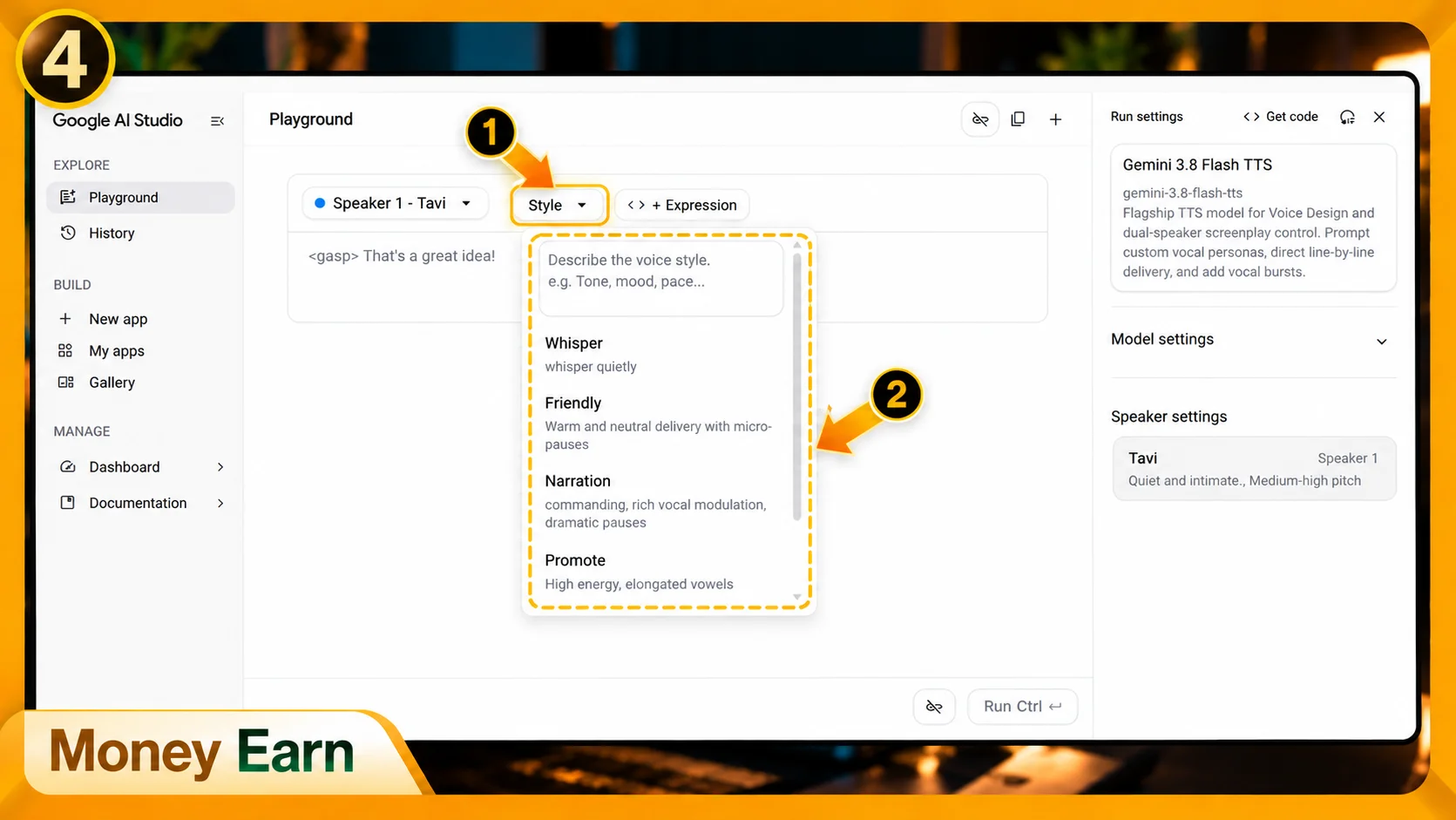
For a normal YouTube video, you could use something like:
Speak in a natural, conversational YouTube narration style. Sound confident and engaging without becoming overly dramatic. Maintain a comfortable pace, use natural pauses between ideas, emphasize important words, and vary the delivery slightly to avoid sounding robotic.
For storytelling, you might ask for controlled suspense and stronger emphasis during important moments. Educational content might work better with a friendly, confident delivery that explains concepts clearly without sounding like a formal lecture.
Don’t underestimate this step.
Small changes in pacing, energy, emphasis, and delivery can make the same voice sound noticeably different.
Experiment until the voice matches the feeling you want viewers to get from the video.
4. Write for Speaking, Not Reading
One of the biggest secrets to professional AI Text to Speech isn’t actually inside the voice generator.
It’s inside your script.
A sentence can look perfectly fine in an article and sound terrible when spoken aloud.
For example:
“Artificial intelligence technologies have fundamentally transformed modern digital content-production methodologies.”
Technically, there’s nothing wrong with it.
But for a YouTube narration?
It’s terrible.
Try:
“AI has completely changed how we create content.”
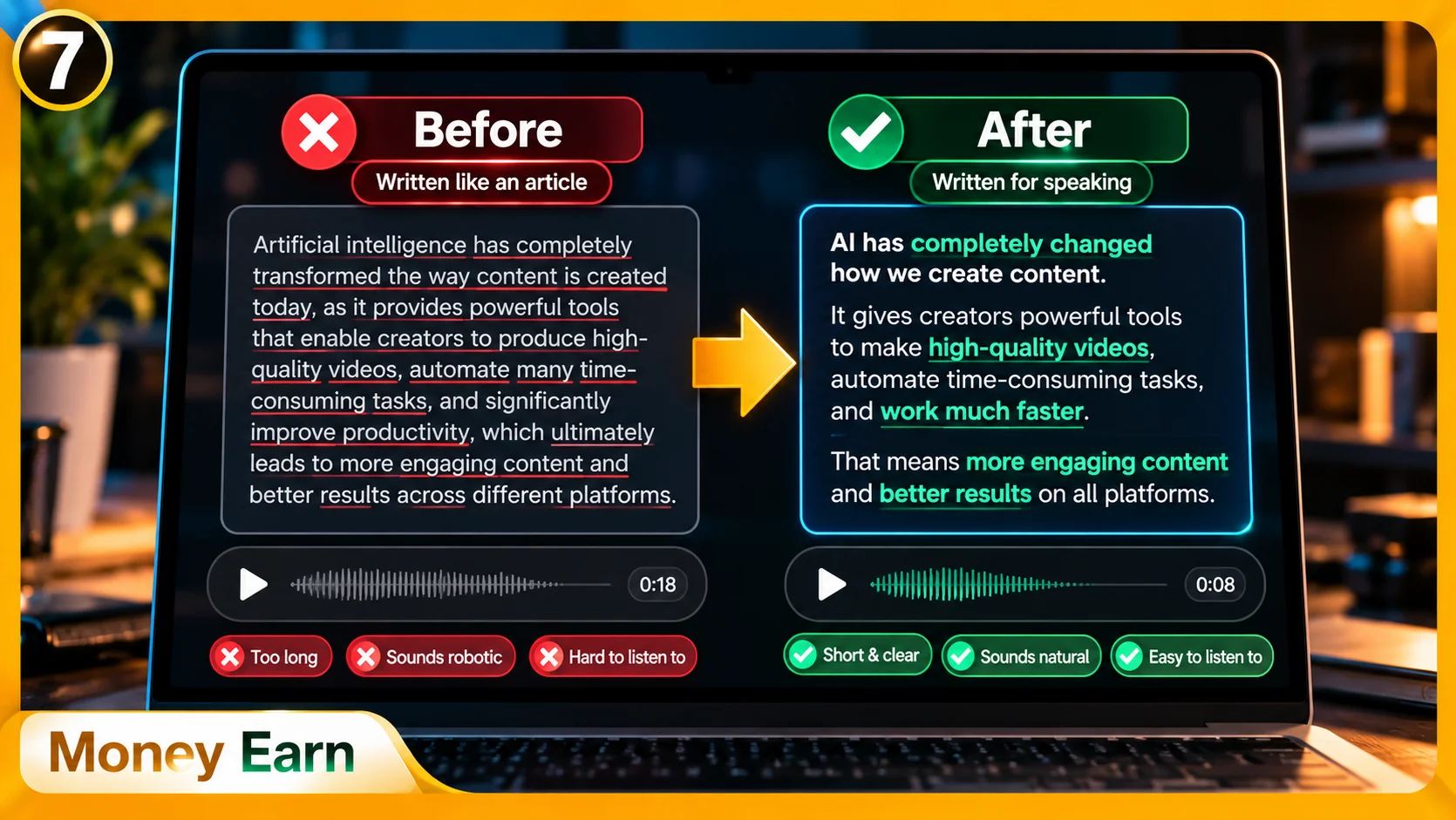
Same basic idea. Much easier to hear.
When preparing your script, imagine you’re explaining the topic to another person rather than writing an academic paper. Use conversational language, remove unnecessary words, and avoid forcing too many ideas into a single sentence.
Your script isn’t being written for someone’s eyes anymore.
It’s being written for their ears.
5. Use Short Sentences and Natural Pauses
Long sentences are one of the easiest ways to make an AI voice sound robotic. When a sentence contains five different ideas, the model has fewer obvious places to breathe, change emphasis, or create rhythm.
Instead, break complicated thoughts into shorter sentences and use punctuation intentionally.
Rather than writing:
“Today we’re going to learn how to create videos using artificial intelligence and we’re also going to look at voice generation and after that we’ll learn how to edit everything together.”
Try:
“Today, we’re going to create a video using AI. First, we’ll generate the voice. Then we’ll create the visuals. Finally, we’ll put everything together.”
The second version gives the voice clear places to pause and gives listeners more time to process each idea.
Paragraph breaks can help too. Don’t give your AI Text to Speech generator one enormous wall of text and expect perfect human pacing.
Give the narration room to breathe.
This is especially useful around hooks, important statements, transitions, and emotional moments where a small pause can make the delivery much stronger.
6. Split Long Scripts and Regenerate Weak Sections
If you’re producing a long video, you don’t always need to generate the entire script in one attempt.
Split longer scripts into logical sections such as:
Hook → Introduction → Section 1 → Section 2 → Conclusion
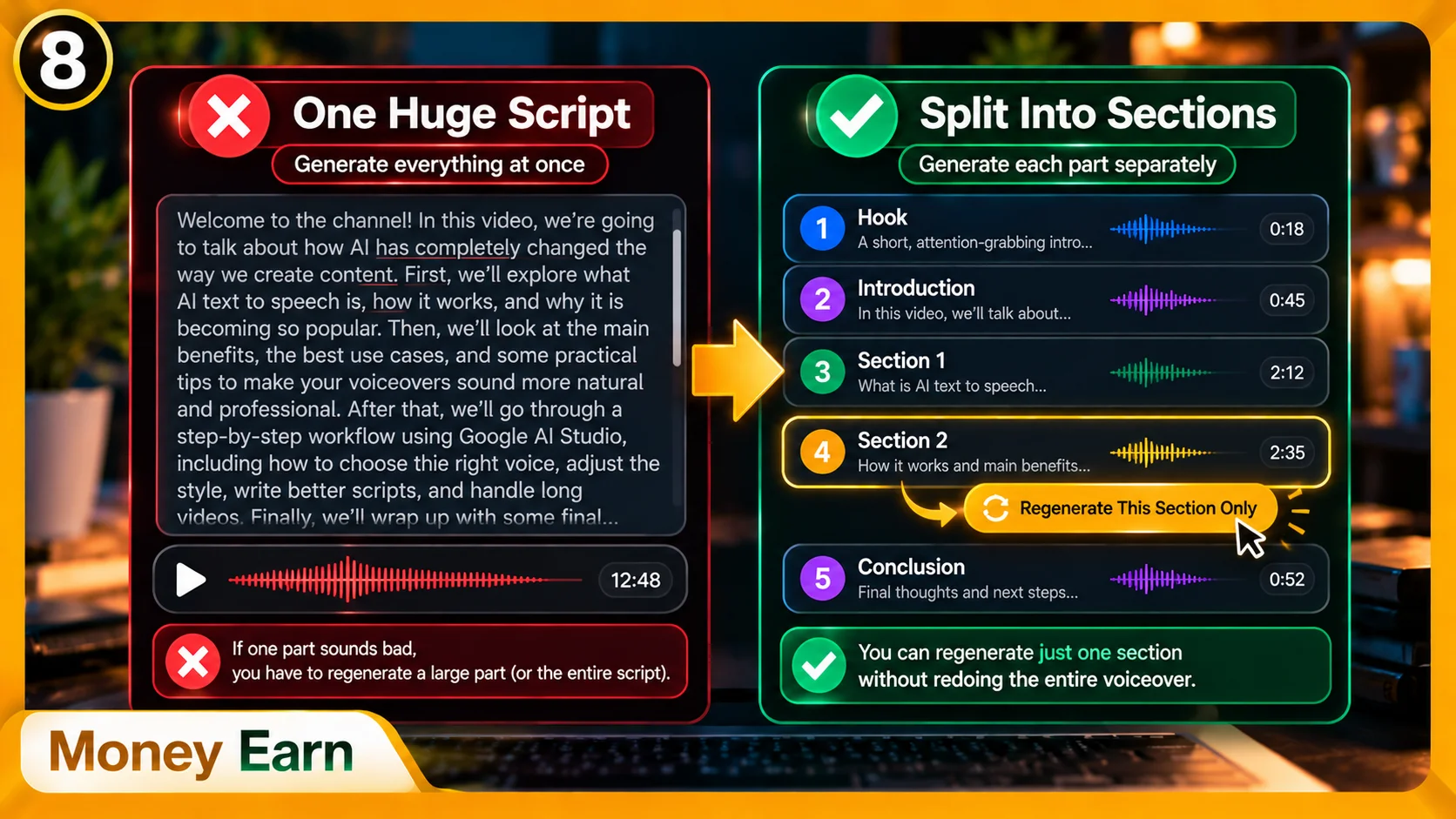
Then generate those sections separately and combine the audio during editing.
This gives you much more control. If something sounds wrong near the end of a ten-minute narration, you don’t have to regenerate everything just to repair one paragraph.
And always listen to the complete output before using it.
Check for mispronounced words, strange pauses, incorrect emphasis, unnatural speed, flat delivery, awkward transitions, and names the model doesn’t pronounce correctly.
If one sentence sounds terrible, try rewriting the sentence before blaming the voice.
Sometimes the problem isn’t the AI.
It’s the writing.
A small rewrite can completely fix the delivery.
7. Create a Consistent Voice for Your Channel
Once you find a combination that works, don’t reinvent everything for every new video.
Save your:
Voice + Style + Pacing + Script Structure
That combination can become part of your production system.
Imagine publishing one video with a deep documentary narrator, the next with an extremely energetic commercial voice, another with a calm narrator, and the next with a dramatic movie-trailer delivery.
Unless those changes are intentional, the channel can start feeling disconnected.
Instead, build a recognizable audio identity. Viewers may eventually associate the voice and delivery style with your content, even if you never appear on camera.
That’s branding.
And yes, branding still matters on a faceless channel.
Use AI to Improve Your Script Before Creating the Voice
Here’s another useful workflow: once your script is finished, give it to AI one more time before generating the audio.
You could ask:
Rewrite this script specifically for spoken YouTube narration. Keep the original ideas and hooks, but shorten awkward sentences, add natural pauses, improve conversational flow, and make it comfortable to hear aloud.
Now AI serves two different purposes. It can help with the content itself, then help optimize that content specifically for narration.
Your workflow becomes:
Idea → Script → Narration Optimization → AI Text to Speech → Editing
That’s much better than writing a formal article and expecting the voice generator to magically turn it into natural conversation.
AI Text to Speech for Faceless YouTube Channels
This workflow becomes particularly useful for faceless YouTube channels because you can create narration without sitting in front of a camera or personally recording every line.
A complete production pipeline could look like:
Idea → Script → Voice Style → AI Voice → Visuals → Editing → Publish
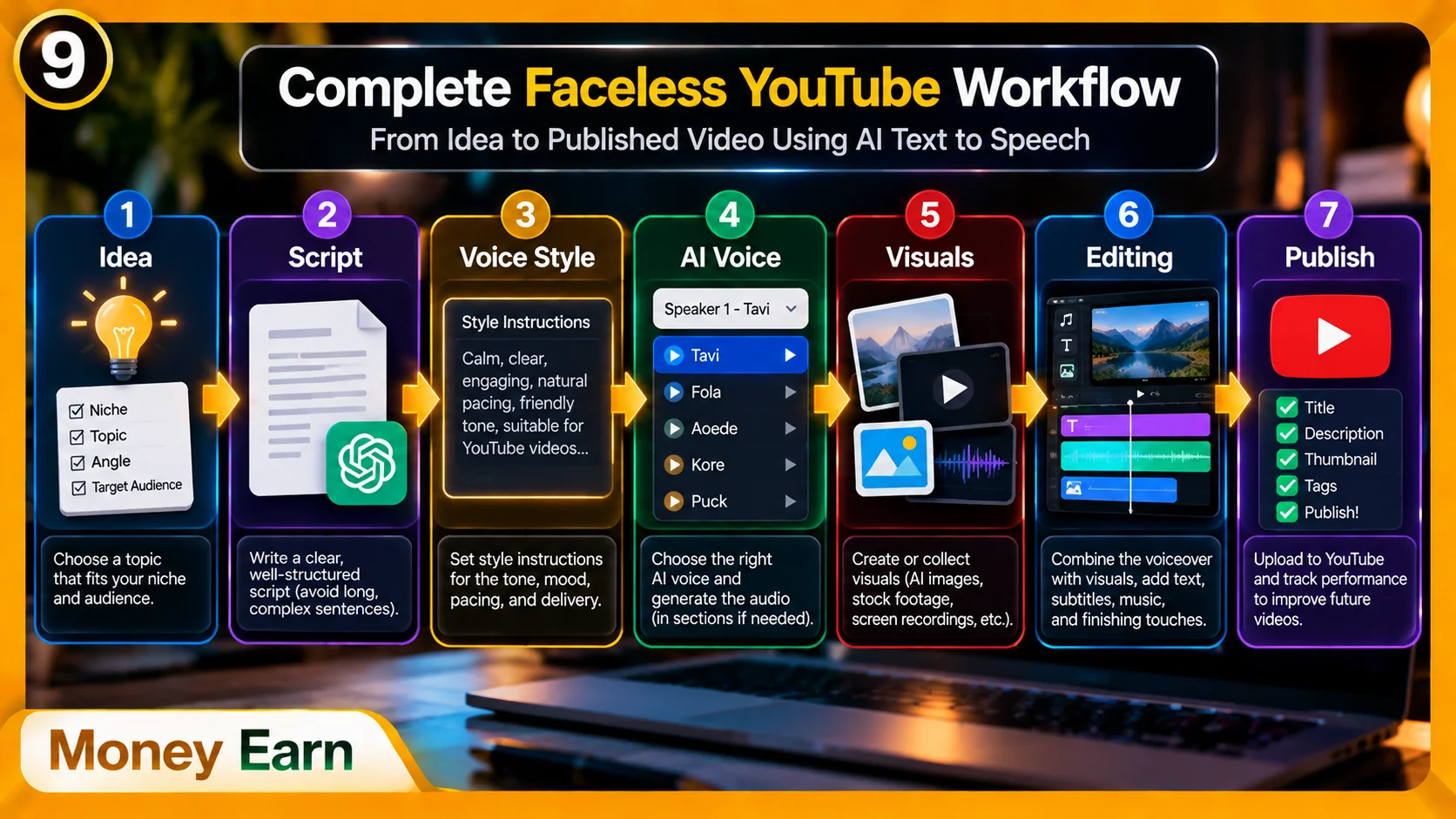
That workflow can be used for documentaries, history, technology, business, educational content, mystery, storytelling, software tutorials, AI, productivity, and many other niches.
The interesting part is that expensive recording equipment stops being one of your biggest barriers.
The question becomes:
“Can I create content people actually want to watch?”
Because a beautiful AI voice won’t save a boring video.
You still need a strong idea, good hook, useful information, interesting visuals, smart editing, a strong title, and a thumbnail that gets attention.
Think of it as:
Strong Script + Natural Voice + Good Visuals + Smart Editing = Better Viewer Experience
The AI voice is an important part of that system, but it’s still only one part.
Should You Convert WAV to MP3?
Depending on the tool you’re using, your generated voiceover may be exported as WAV.
WAV usually provides high-quality audio but produces larger files. MP3 creates smaller files and is widely supported, so it can be convenient depending on your editing workflow.
But don’t convert the audio just because MP3 exists.
If your video editor supports WAV and you want to preserve the original quality, you can simply keep the WAV file. Convert to MP3 when you specifically need the smaller size or compatibility.
A Simple AI Voiceover Workflow You Can Reuse
You don’t need to overcomplicate the process. Your repeatable workflow can be:
- Write the video script.
- Create voice-style instructions for your niche.
- Open your AI Text to Speech tool.
- Test and choose a suitable voice.
- Add your Style Instructions.
- Rewrite awkward sections for spoken narration.
- Split long scripts when necessary.
- Generate the voiceover.
- Listen and regenerate weak sections.
- Export the audio in the format your editor needs.
Once you’ve saved the voice, style, and workflow that work for your channel, future videos become much faster to produce.
Final Thoughts: Direct the AI Like a Voice Actor
You no longer need a professional microphone setup just to experiment with high-quality voiceover content.
AI Text to Speech gives creators another way to transform scripts into narration without personally recording every sentence. But the technology itself isn’t the secret.
The way you direct it is.
Choose a voice that fits your content. Give it clear Style Instructions. Write for speech instead of formal reading. Use punctuation and pauses intentionally, split long scripts when necessary, and listen carefully to the final result.
Most importantly, don’t simply paste thousands of words into a generator and press a button.
Direct the AI like you’re directing a voice actor.
Once you find a combination of voice, style, pacing, and script structure that works, save it and turn it into a repeatable production system.
Then you can move from:
Script → Professional Voiceover
without recording every line yourself.
And from there, you’re ready for the next stage:
Turning that voice into a complete video.
Frequently Asked Questions
What Is AI Text to Speech?
AI Text to Speech is technology that uses artificial intelligence to convert written text into spoken audio.
Can I Create AI Voiceovers for Free?
Some AI voice-generation platforms provide free access or usage allowances, although limits and pricing can change. Check the current plan of the platform you’re using.
How Do I Make AI Text to Speech Sound Natural?
Use conversational writing, shorter sentences, appropriate punctuation, natural pauses, suitable Style Instructions, and a voice that fits your content.
Can I Use AI Voiceovers for YouTube?
AI-generated narration can be part of a YouTube production workflow. Your overall content still needs to provide genuine value and follow YouTube’s applicable content and monetization policies.
Should I Use WAV or MP3 for AI Voiceovers?
WAV generally preserves higher audio quality but creates larger files. MP3 is smaller and widely supported. If your editor handles WAV without problems, you don’t necessarily need to convert it.
Should I Generate a Long Script All at Once?
Not necessarily. Splitting longer scripts into sections can make corrections, regeneration, and quality control much easier.
Can AI Text to Speech Replace a Microphone?
For faceless or AI-narrated content, it can remove the need to personally record every line. Whether that’s the right choice depends on the style and identity you want for your channel.